📥 Installation and first launch
Download
The latest version is always at io-backup.com → Download button:
- Windows:
IO-Backup-Setup-x.y.z.exe(installer) or the portable version. - macOS: signed and notarized
IO-Backup-x.y.z.dmg.
Windows / Windows Server
- Run the installer. It installs two pieces:
- The engine as a Windows service (
iobackupd, LocalSystem account, automatic startup and restart on failure). - The app "IO Backup" in the Start menu.
- When finished, open the app. The service is already running.
Note: the C:\ProgramData\iobackup folder is restricted to SYSTEM + Administrators. The app pairs with the engine requesting UAC elevation once.
If the service doesn't respond, the app itself diagnoses and repairs it with a single UAC prompt — you never need to open a console.
macOS
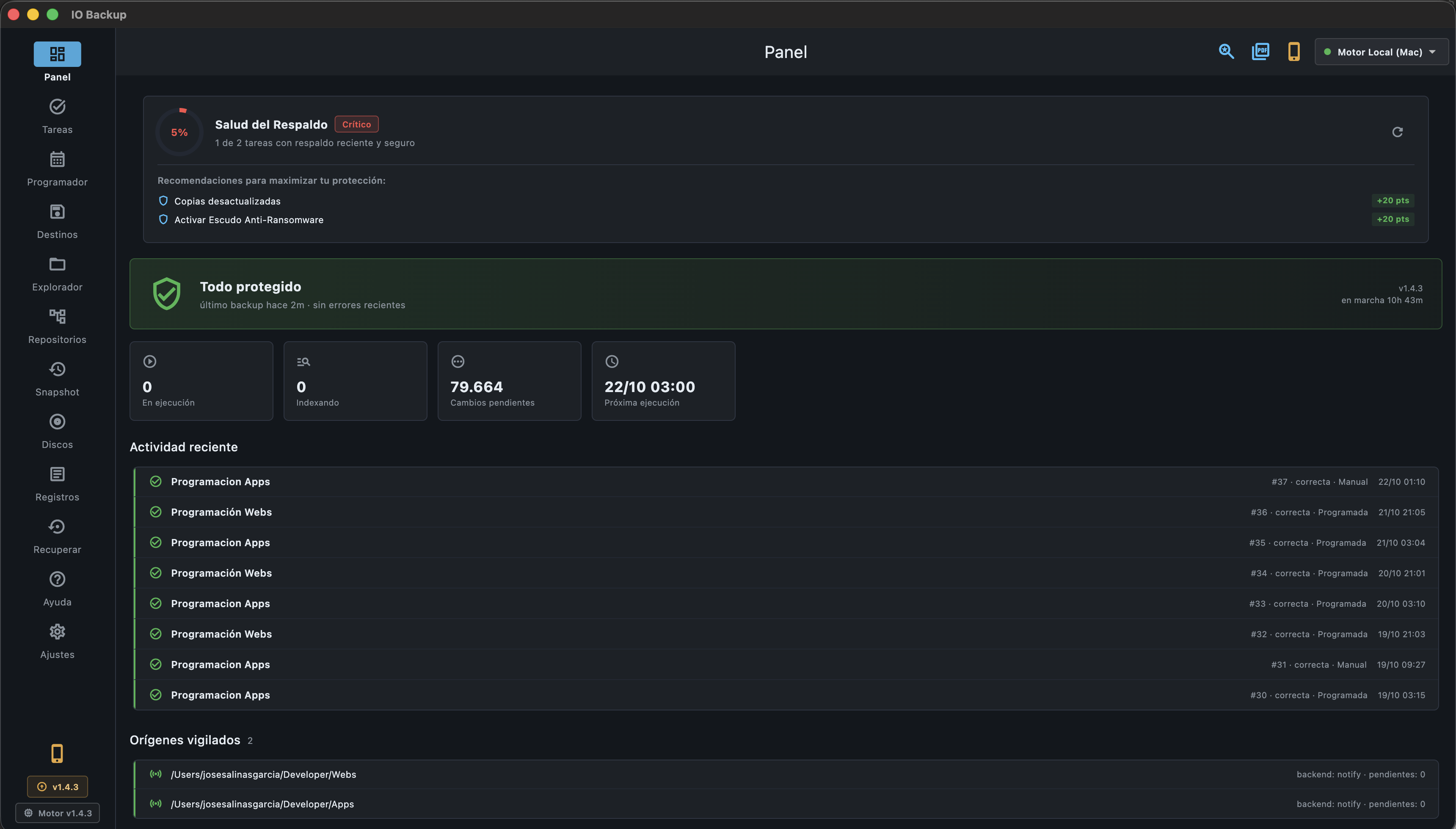
- Open the DMG and drag IO Backup.app to Applications.
- The first time you open it, the app installs the engine in
~/.iobackupand the menu bar icon. - The engine runs as your user and starts automatically at login.
First launch
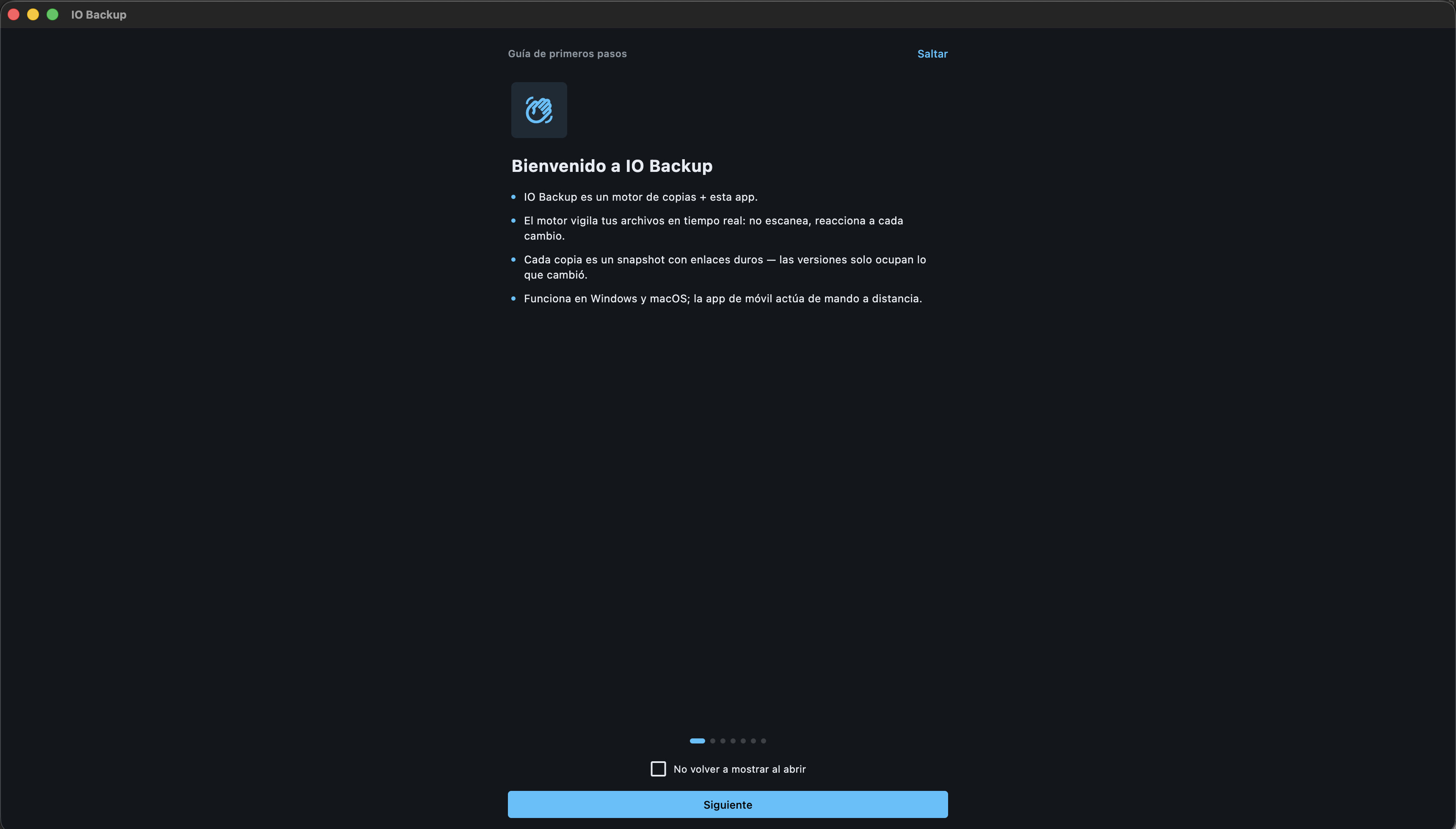
With no clients registered, the engine shows a pairing PIN (10 minutes, single use) — the app detects it by itself if the engine is local or on the network (Bonjour/mDNS) and asks you for it. See pairing app and engine.
Requirements and data
- Engine data:
C:\ProgramData\iobackup(Windows) /~/.iobackup/data(macOS): SQLite index, configuration and keys. Include it in your own backups if you want to migrate the engine. - Default port:
9860, configurable from the app's Settings (check it's free before applying). - The engine doesn't need Internet to back up — only for updates, licenses, devlog and the remote tunnel.
Updating
The app and the engine update through independent channels and only install signed binaries. See updating app and engine.