♻️ Restoring files and versions
Restoring is selective: you recover what you need — a single file, a whole folder, or the version that existed on a specific date.
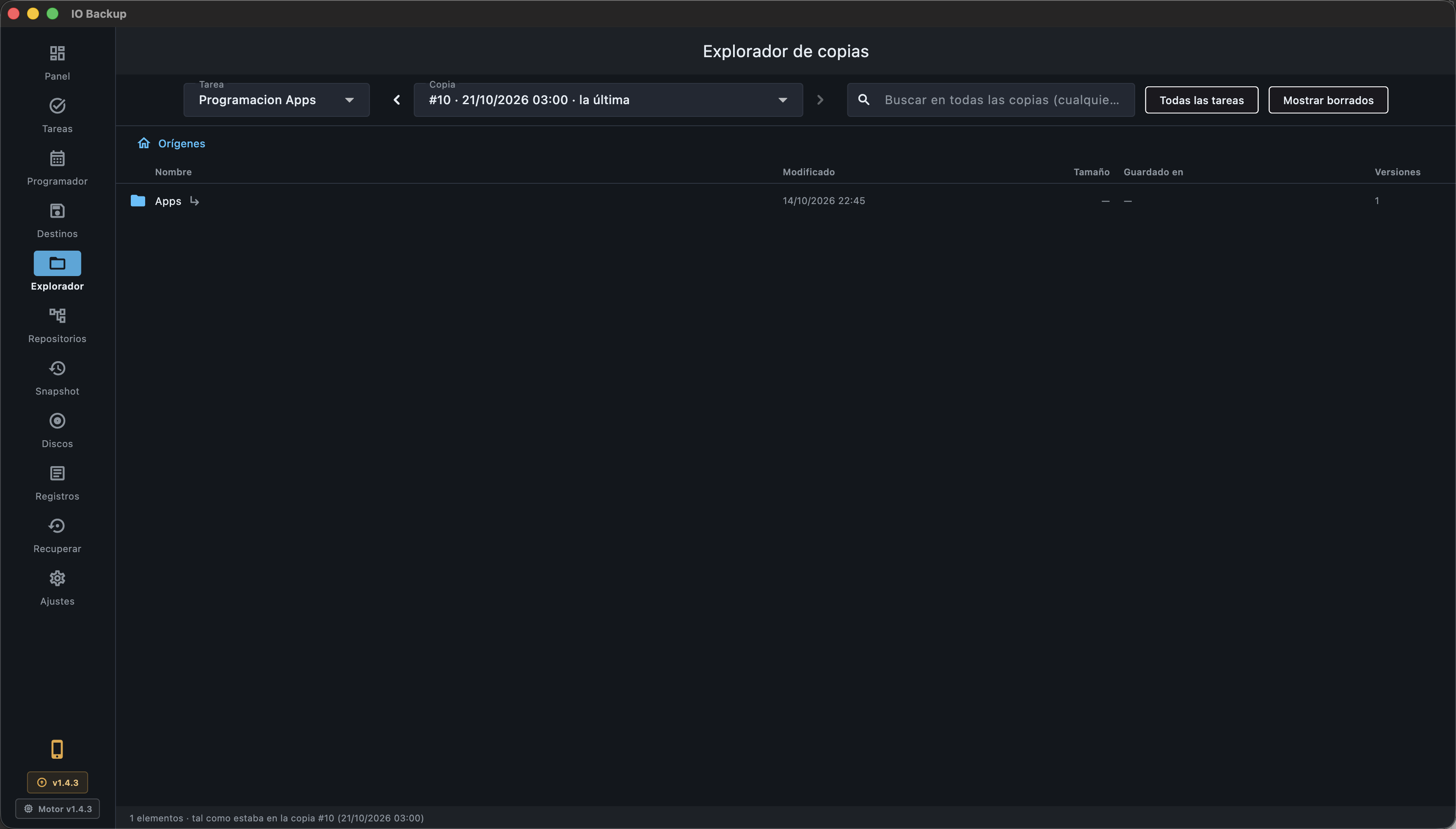
How to restore
- Open the task → Restore section / version browser.
- Pick the snapshot (snapshots look like the complete copy from that moment — you don't have to stitch incrementals together by hand).
- Browse the tree and check files/folders.
- Choose the restore target: to the original location or to a separate folder (recommended if you only want to compare/recover something).
- Confirm — the engine downloads, rebuilds (blocks included), decrypts if needed and writes.
Versions of the same file
Every file keeps all its versions: you can recover the budget.xlsx from 3 weeks ago even if it changed 20 times. The file view shows its available dates.
Details worth knowing
- Restoring never touches the destination or the history — it only reads.
- If you restore over the original, anything changed after that snapshot gets overwritten: when in doubt, restore to a separate folder and merge by hand.
- On encrypted backups it's transparent on the original machine; on another machine the password is needed (encrypting backups).
- Block-based files are rebuilt automatically from their manifest — you restore the whole file, not pieces.
- Restores aren't limited by the upload bandwidth throttle.
If what you want is to recover the WHOLE machine
For a complete disaster (new disk, new server) the path is Recover: point the new engine at the destination and adopt the whole backup — see catalog and adoption.