🎯 Your first backup, step by step
This guide creates a fully working backup. Each option has its own article in the Backups section.
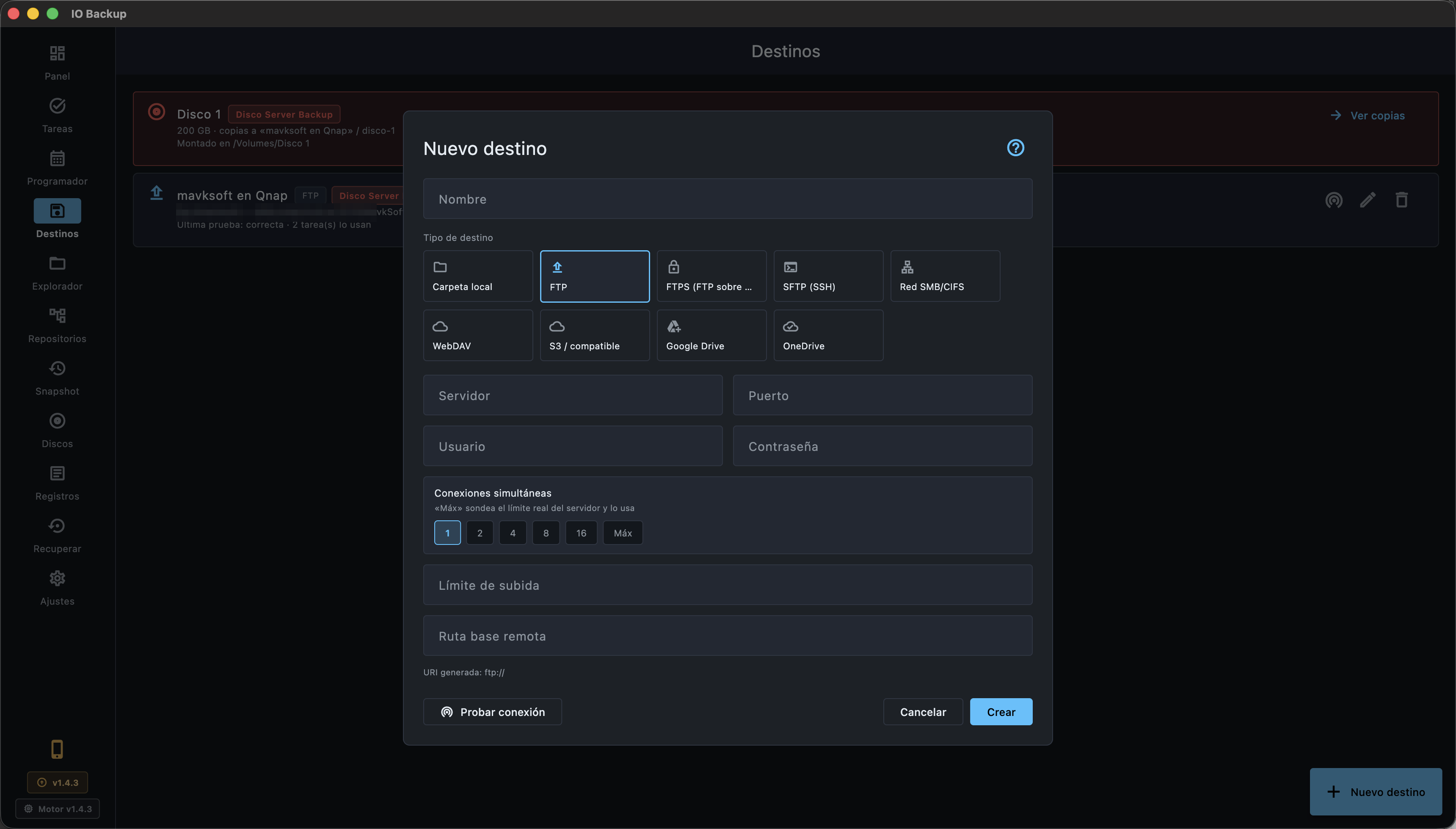
1. Register the destination
In Destinations → New destination:
- Choose the type: Local/network folder, FTP/FTPS or SFTP.
- Fill in the connection (path, or server + user + password/key).
- Press Test — the engine actually connects and validates write permissions. On SFTP it also pins the server fingerprint.
- Save. The destination is now reusable across several tasks.
The password travels inside the destination URI but is never shown or exported: the API always returns it masked.
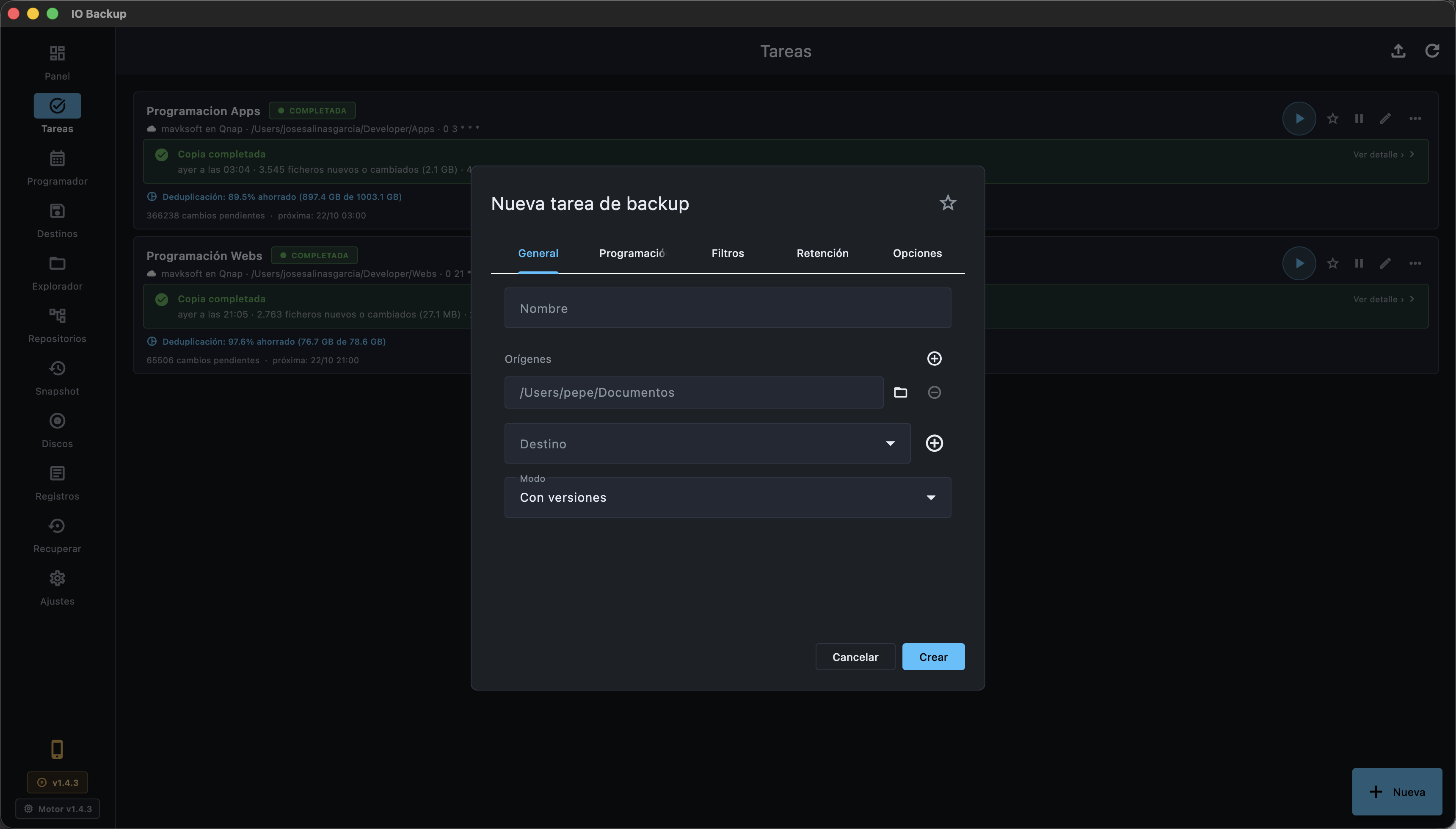
2. Create the task
In Tasks → New task:
- Source: the folder (or folders) to protect.
- Destination: the one you just registered. You can specify a subfolder for this task.
- Backup mode — start with Versioned: it keeps a snapshot of each run (details in backup types).
- Schedule:
@every 1h, a cron (0 3= every day at 03:00) or on detected changes* (scheduling backups). - Optional: filters, retention, encryption, bandwidth limit.
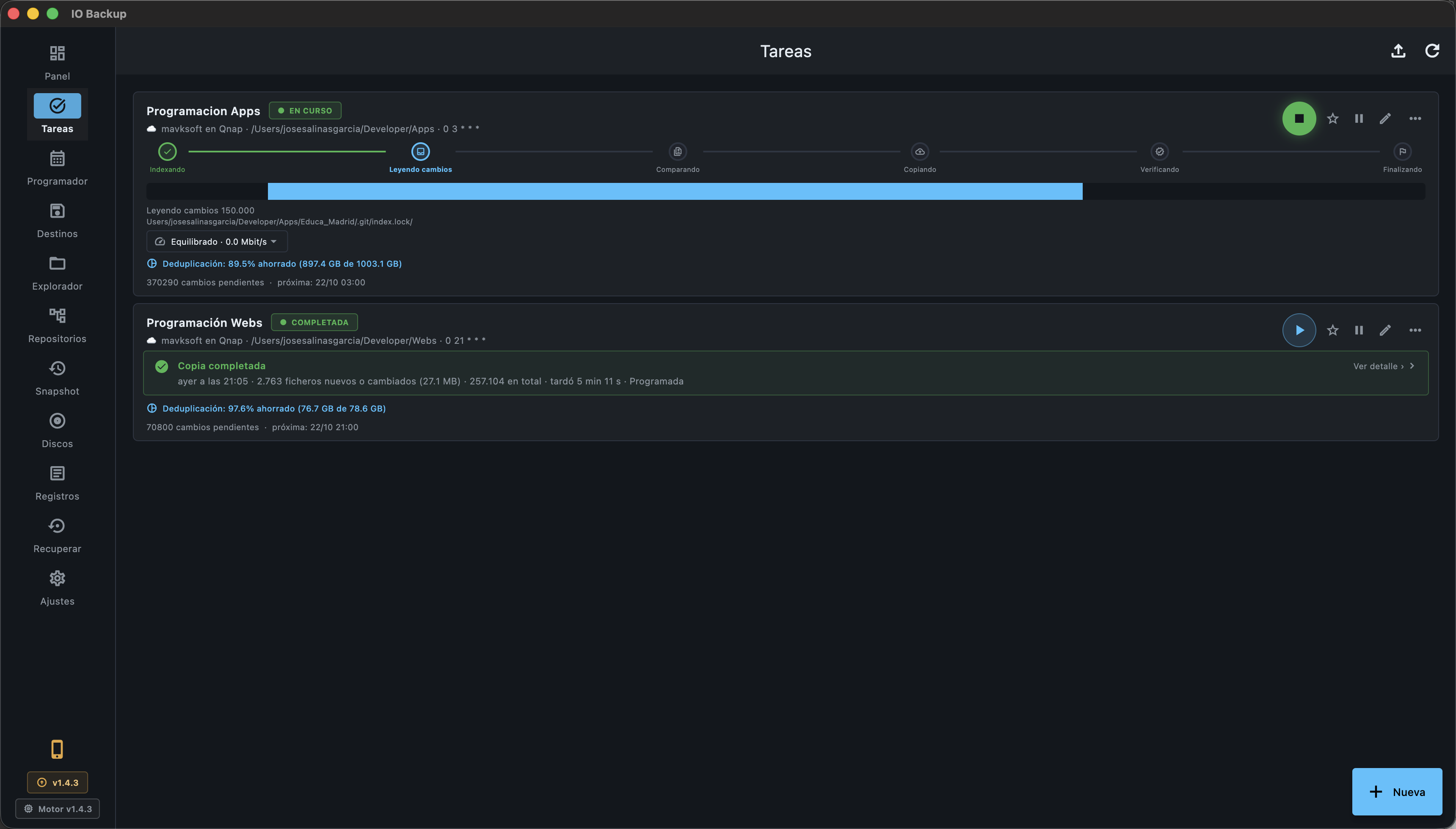
3. Run it and watch
- Press Run now on the task.
- The panel shows real phases (connecting, comparing index, copying, writing snapshot…), percentage, speed, files and ETA — not a blind spinner.
- The first run copies everything; the following ones only what changed, thanks to the hash index.
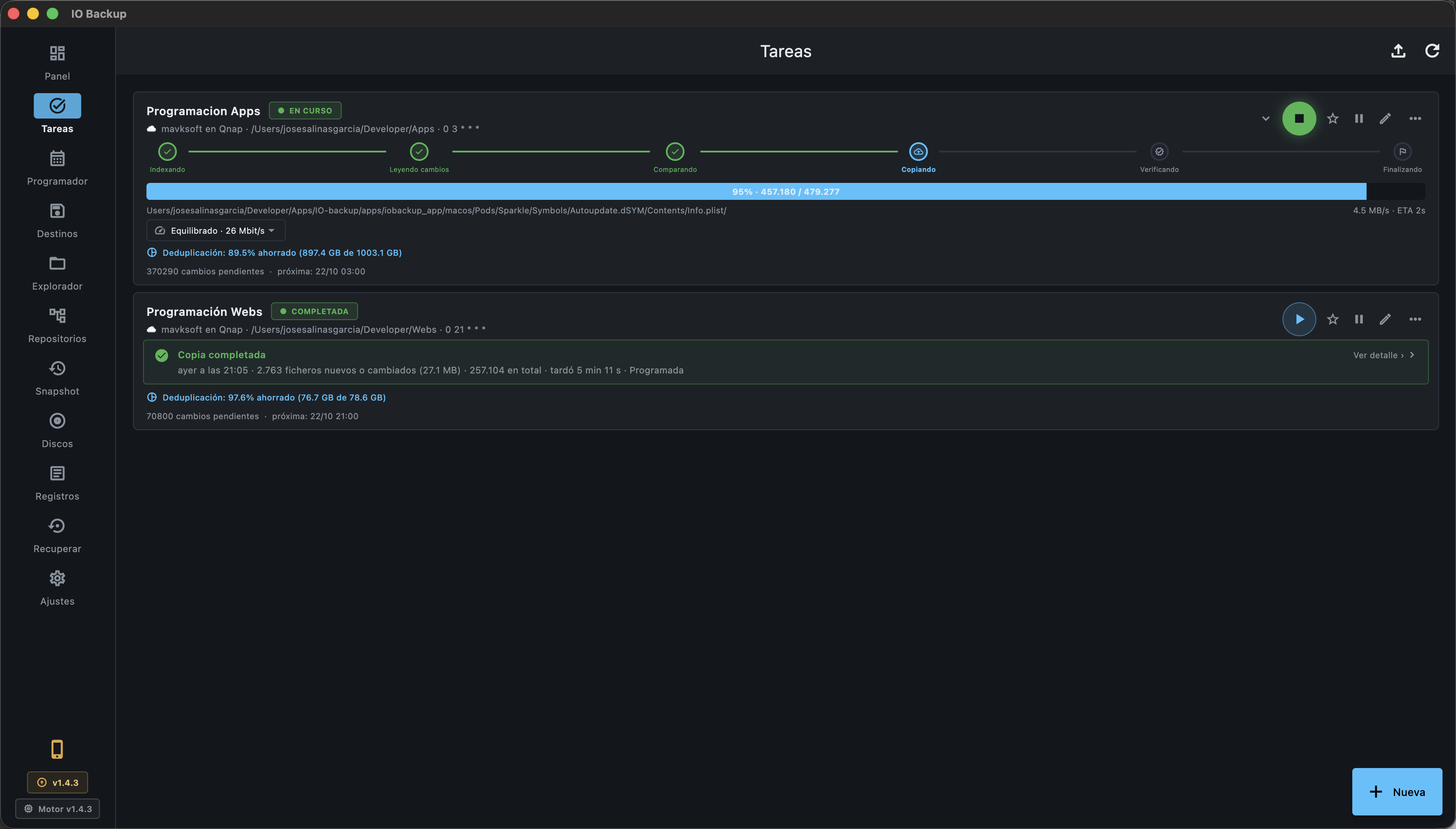
4. Check the result
- On the task you'll see
✓with duration, files and bytes. - On the destination: one folder per snapshot (
AAAAMMDD-HHMMSS) that looks complete — on a local disk those are hard links, barely any extra space. - Careful with FTP destinations: each snapshot stores only what changed relative to the previous ones; restore rebuilds it automatically (read retention before pruning).
5. Verify
The task's Verify button: re-reads the destination data and compares hashes. Do it after the first backup and every so often (see verifying a backup).
Common beginner errors
| Symptom | Typical cause |
|---|---|
| "Destination unreachable" | Credentials, firewall, or a non-existent path — the Test button catches it beforehand |
| Very slow FTP backup | Normal: enable blocks and check the speed test |
| Skipped "in use" files | On Windows they're copied via VSS; check the log if any fail |