⚡ Performance and fine tuning
Why it's fast
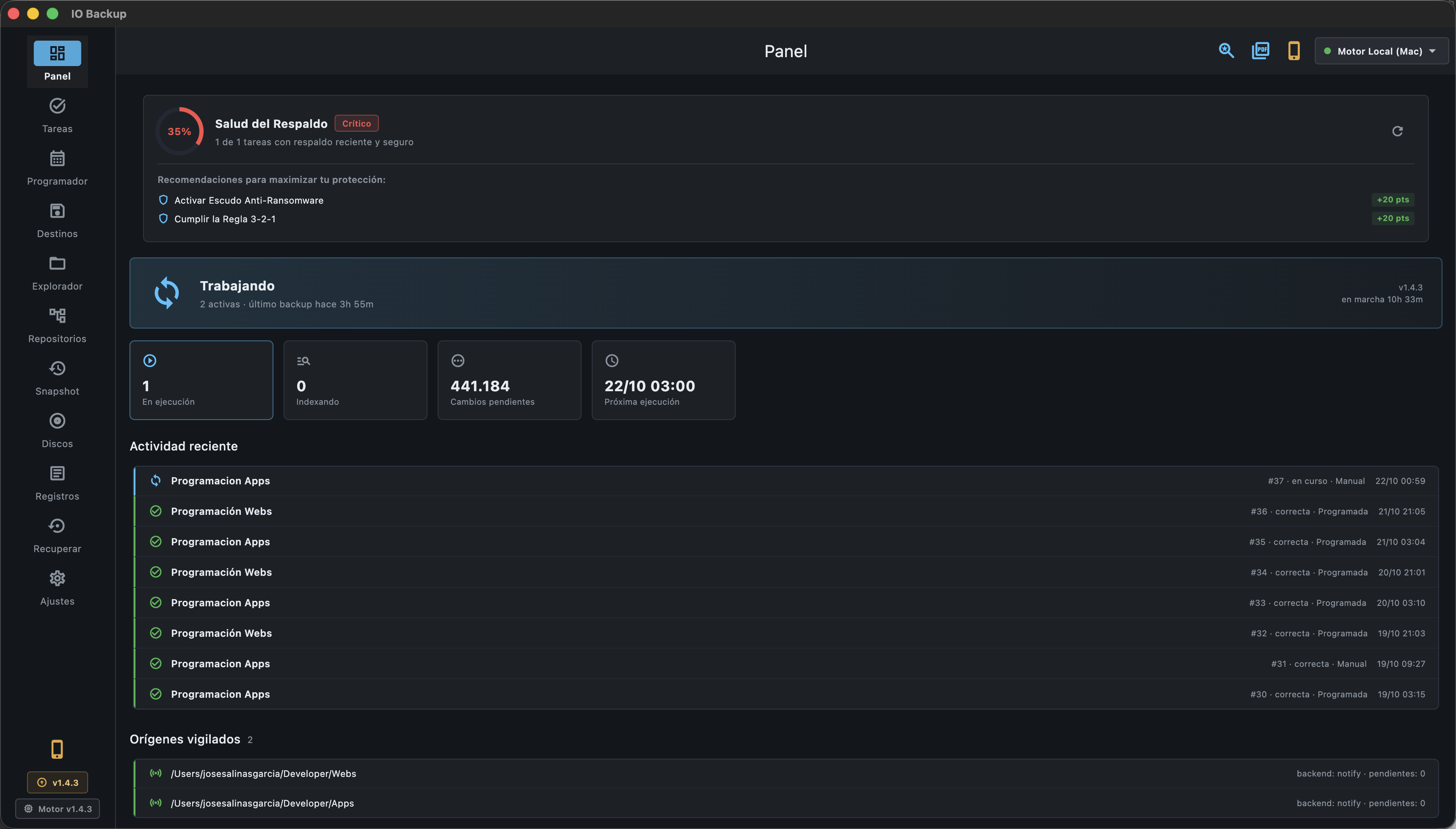
Unlike classic backups that rescan the whole source on every run, the engine keeps an SQLite index and uses file-system watchers: it knows what changed without looking at everything. Subsequent backups only touch what's new or modified.
Settings you can tune
- Transfer concurrency (engine Settings): how many uploads at once. Changing it affects in-progress transfers, not just future ones.
- Bandwidth: per task (max, balanced, discreet, fixed Mbps, per-window or ask) plus a machine-wide cap. See Limiting bandwidth.
- Speed test per destination and per network: measure real upload before choosing a mode.
- Priority (Windows): the service runs at below-normal priority so it doesn't get in the way; disabled with
background = falsein the config. - Large files in blocks: ≥ 64 MB files upload in zstd chunks — a small change to a huge file doesn't re-upload everything.
If a backup is slow
- Check in Logs which phase it's in (exploring, uploading, verifying) — the app shows the real detail, not an endless spinner.
- Check the bandwidth configured on the task and the global one.
- Slow FTP destinations: run the speed test and lower concurrency if the server limits it.
- On Windows the service runs at low priority on purpose — if the machine is barely working and you want more speed, set
background = falseinconfig.toml.
What to look at in resources
The resources card in Logs splits usage between the engine, the app/icon and the whole machine: if the machine is loaded but the engine isn't, the bottleneck is elsewhere. The "Reset" button clears the peaks to measure a specific run.